
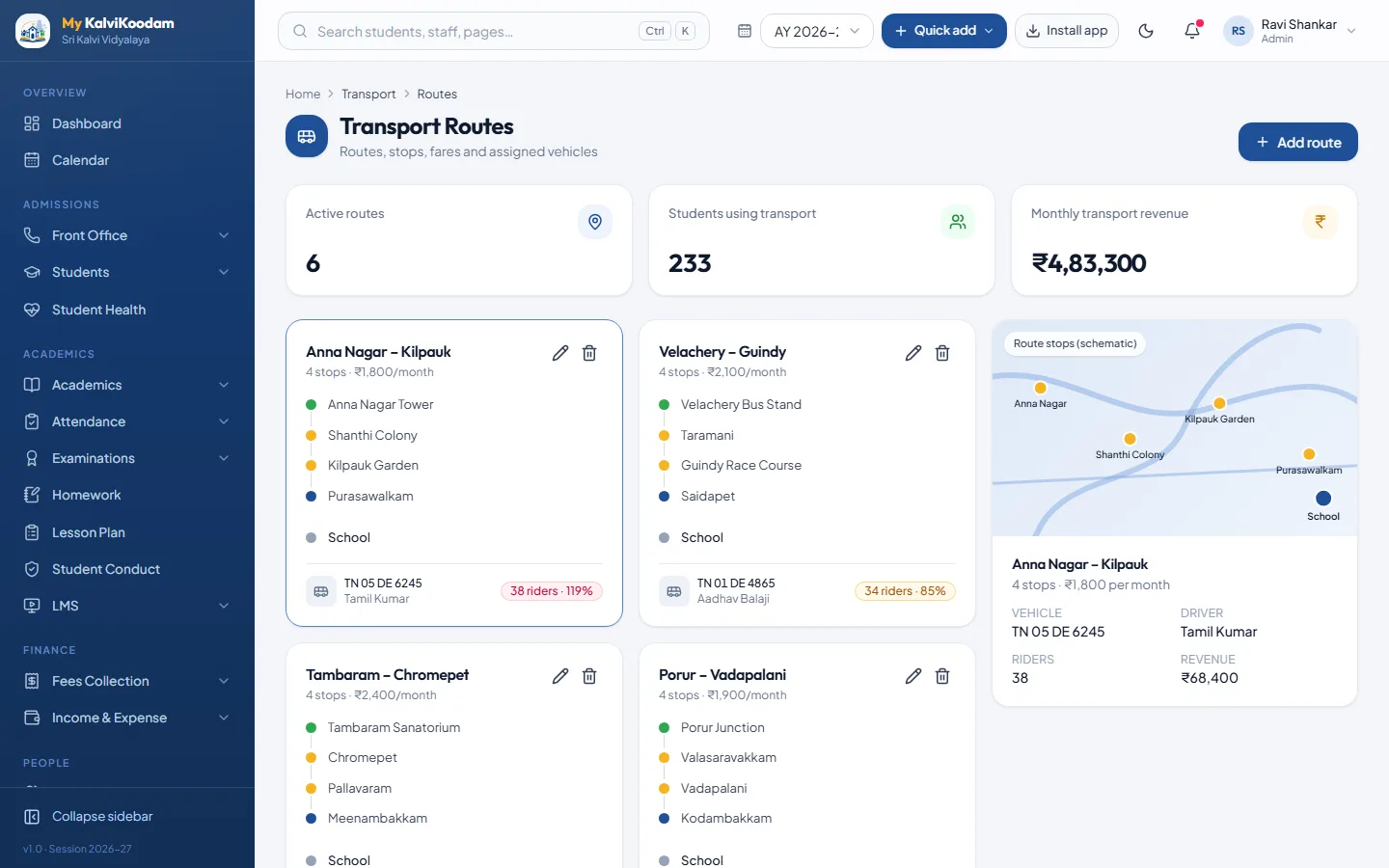
Routes with ordered stops and a fare
A school bus service is a list of routes, and each route is a list of stops in the order the bus visits them. In My KalviKoodam you set up every route with its stops, a monthly fare and the vehicle that runs it. When a parent asks what the fare is or where the bus stops, the office can answer from one screen.
A good route record also helps at admission time. When a family asks whether the bus comes near their house, the receptionist can look at the stops on each route, read out the fare and the vehicle, and say yes or no on the spot. The route and pickup stop can then be chosen on the same New Admission form that creates the student profile.
The route record also supports routine decisions. A route that is always full may need a second vehicle, and one that is nearly empty may be worth reviewing. These decisions are easier when the stops, the fare and the number of riders are all in one place.
Vehicles, drivers and capacity
Each vehicle is recorded with its driver, the driver's phone number and its seating capacity, and is marked Active or in Maintenance. The route screen then compares the riders on a route with the vehicle's capacity, so an overfull bus is seen early and not on the first day of term.
Capacity is where many schools get caught. A route that was comfortable in June is overfull by August because five families joined mid-term. Since the screen compares riders with capacity as you assign each student, the transport in-charge can open a different route or ask for another vehicle while the problem is small. A vehicle sent to maintenance is marked as such, so the record shows which buses are really available.
Drivers change too. Recording the driver's name and phone number against the vehicle means the office has a number to call when a bus is late, and the number is updated in one place when the driver changes. Keep the status honest: a vehicle in maintenance should not be given new riders.
- Vehicle details with driver name and phone
- Capacity against the number of riders on the route
- Active or Maintenance status for each vehicle
A servicing and maintenance log
Buses need regular attention, and the paperwork is easy to lose. The maintenance log records each event against the vehicle with its cost. The types are Service, Repair, Tyre change, FC renewal and Insurance, so the school can see what each bus has needed and what it has cost. It is a record the transport in-charge can open when someone asks about a renewal.
The log is useful beyond the garage. When the management asks what a particular bus has cost this year, or when an insurance or FC renewal is due, the record gives a date and an amount. Keeping it in the same system as routes means the person who runs the buses does not have to look through an old notebook to answer.
Assigning each student a route and stop
Every rider is assigned a route and a pickup stop. This can be chosen when the child is admitted, and it shows on the student profile, so the class teacher, the office and the transport in-charge all see the same facts. When a family changes address, the stop is updated on the profile and the route totals follow.
The students module holds the profile; the transport module holds the routes. See the student information system page for how profiles work.
Think about the first week of June. Dozens of families ask for a stop, a few change their minds and the office is stretched. Setting the stop on each profile, one student at a time, creates the rider list for each route and gives the accountant the list of riders to bill. Because riders and fares come from the same assignment, the billing list and the seating list cannot drift apart.
Monthly transport billing into the fee ledger
The transport module does not leave the accountant with a second set of books. One monthly billing run creates the fare charge for every rider, and each charge appears in that pupil's fee ledger next to tuition and other fees. A single receipt and a single reminder then cover everything the family owes. If a bus fee is outstanding, it appears in the dues list with the rest.
Read more about fee collection and the fees module, or see how the accountant works with the dues.
A practical point for the accountant: the transport charge is a normal fee line, so everything you already do for tuition applies to it. Reminders, receipts and the dues search include it, and the finance overview counts it as fees collected once it is paid. There is no separate transport register to reconcile with the cash.
With the charge billed monthly, the office can see at any time, through the dues search, which riders have paid for the month and which have not.
Live bus tracking from the driver's phone
Each vehicle gets its own secret driver link. The driver opens it on a phone, with no app to install and no login, chooses the route, taps Start trip, and the phone sends the bus position about every ten seconds until the driver taps End trip. If the phone loses the signal, positions wait on the phone and are sent when it is back online.
The office sees every running trip on a live map in transport, with the stops of the route, the next stop highlighted, the speed, how long ago the position arrived and a warning when the bus has gone quiet. The map is drawn from OpenStreetMap, and a school that expects heavy use can point it at its own tile server in the settings.
Parents get a Bus tracking page in the portal showing their own child's route, stop and the bus on the map, with the distance to the stop, and a bell notification when the bus comes near the stop, once per stop per trip. Parents never see the driver's phone number, another child or the tracking link.
- Stop places typed in, taken from the phone's current location, or pasted from a Google Maps link
- Trip history with start and end time, duration, distance, top speed and the stops reached
- The arrival distance, how long positions are kept and when a quiet bus is flagged are all settings
- A new link can be made at any time, which stops the old one, or the link can be switched off
What tracking needs, and what it does not do
Tracking works from the driver's phone, so the phone must have location switched on and the driver's page must stay open: phone browsers do not track in the background or with the screen locked, and the position is only as accurate as the phone. Location is shared only between Start trip and End trip. There are no GPS devices fitted to the bus, and arrival alerts are bell notifications in the app, not SMS or WhatsApp messages.
Messaging the parents of bus riders
The messaging screen includes a smart list of transport users. A notice about a changed pick-up time or a delayed bus can be sent to those families only, by SMS, e-mail or WhatsApp through the school's own accounts, and it is logged. One message goes to each household, not one per child.
For example, a breakdown on a Monday morning can be handled in minutes: filter to the route, send one message and check the log to confirm it went. If a message fails for a family, the log shows it and lets you retry, which beats wondering whether anyone was told.
Parents also see notices in their portal, so the same announcement is there for a family that missed the message.
Setting up transport for a new year
A new academic year is the natural time to revisit routes. Review last year's stops and fares, confirm which vehicles are Active and which are in Maintenance, and update the driver details if anyone has changed. Then assign the new riders and run the first monthly billing.
Because the fee structure for the new year can be copied forward from the previous year, and promoted pupils bring their unpaid dues with them as previous dues, the accountant starts the year with the right figures in the ledger.
- Review routes, stops and monthly fares
- Confirm vehicle status and driver phone numbers
- Assign each new rider to a route and pickup stop
- Run the monthly transport billing
- Check the Route occupancy report against capacity
Reports for the management
Two ready reports serve transport. Transport users lists who rides, and Route occupancy shows how full each route is. Either can be exported to CSV for a management meeting or a bus contractor. They appear only when the school has the transport module, and each person sees only the reports their role can open.
Management meetings go better with a printout. Route occupancy shows which routes are underused and which are full, which is the information needed before adding or merging a route. Transport users gives the complete rider list, useful when a contractor or the transport committee asks.
Questions parents ask about the bus
Most calls to a school office about transport are one of a handful of questions. Each has an answer in the system, which means whoever picks up the phone can answer without searching.
- Which route and stop is my child on? The student profile shows it
- What is the monthly fare? The route record and the fee ledger show it
- Has this month's fare been charged? The fee ledger and receipts show it
- Is there a change to the bus timing? A message to transport families covers it, and notices show in the parent portal
Who works with it
The receptionist, principal, vice principal, correspondent, managing director and accountant can all open the module. It sits alongside hostel, library and the rest of the campus operations. To see it working on sample routes, book a demo.
The transport in-charge may be the vice principal, an administrator or someone in the correspondent's office, depending on the school, and the module does not assume one arrangement. Whoever it is, the same screens serve them: routes, vehicles, assignments, maintenance and billing. The accountant sees the money side through the fee ledger, and the principal can read the reports.