
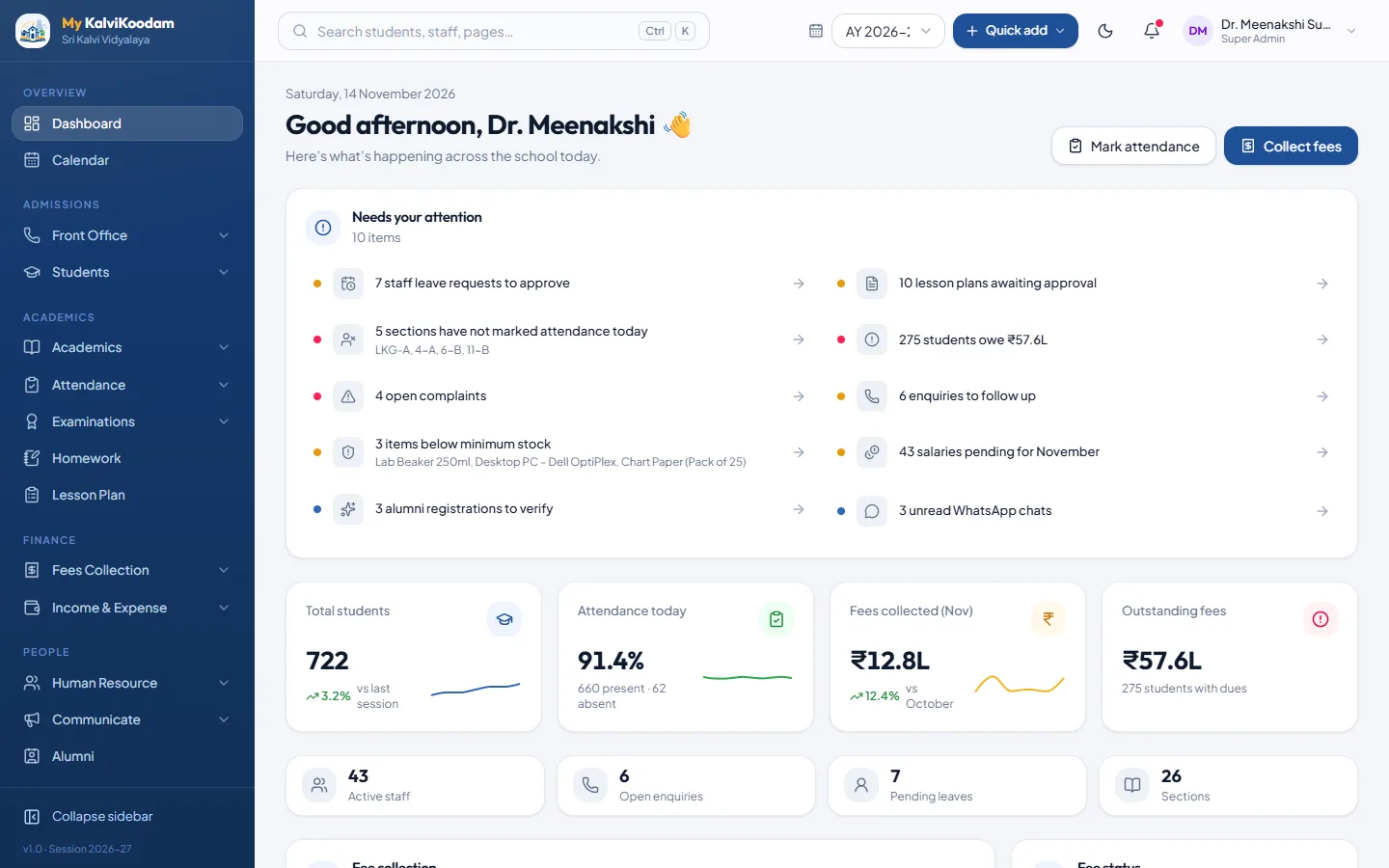
What a school ERP actually is
ERP stands for enterprise resource planning, which is a grand name for a simple idea: the school keeps its people, money and routines in one system instead of in separate books. For a school, that means the student record, the fee ledger, the attendance register, the staff list and the exam marks are all linked, so a fact typed once is available everywhere.
Most Indian schools reach this point after years of registers, a fee program on one computer, marks in Excel and notices on WhatsApp. Each piece works, but nobody can see the whole school, and every change has to be repeated in three places. A school ERP removes that repetition.
The word ERP also tells you what to test. Change something in one place, such as moving a pupil to another section, then look at the fee list, the attendance register and the timetable. If all three show the move, you are looking at one connected system. If you have to repeat the change, you are looking at a set of programs sold together.
What to expect from a good school ERP
Before looking at any product, write down what your office does in a normal week. A useful ERP should cover that list without a second program, and it should do more than store records. These are the tests worth applying.
- It covers admissions, students, attendance, fees, exams, staff and parent communication in one place
- Each person gets a screen that suits their job, and sees only what they are allowed to see
- Problems come to the surface: unmarked attendance, overdue fees, absent teachers
- Receipts, marksheets, admit cards, ID cards and certificates print properly on plain A4
- Parents and students have their own login without paying extra for it
- Your data can be exported to a spreadsheet at any time
- It works on a phone, because teachers do not carry laptops into class
How My KalviKoodam is organised: 21 modules in nine areas
The system is built as 21 modules, grouped by the part of school life they serve. A school switches on the modules it needs and leaves the others. The areas, with the modules in each, are:
Knowing the modules matters less than knowing how they are grouped. Some modules rely on others: attendance and exams use the classes and subjects from academics, and the finance books build on fees. That is why the list below starts with the office and the student record and moves outward.
- Admissions and front office: front office for enquiries, online applications, visitors, calls, post and complaints
- Students: the student directory with profiles, promotion and bulk import, plus health and conduct records
- Academics: classes, subjects and timetables, homework, lesson plans and the learning module
- Attendance and examinations: daily attendance and leave, then exams, marksheets and report cards
- Fees and finance: fee collection and the income and expense books
- Staff: staff records, leave and payroll
- Communication: notices, SMS, e-mail, WhatsApp and parent chat
- Campus operations: library, inventory, transport, hostel and certificates and ID cards
- Alumni and reports: a former-student network, and ready-made reports with CSV export
Modules that update each other
The real benefit of an ERP shows when one action quietly changes another record. When a teacher is marked absent, that teacher's periods appear on the substitution board with a free teacher suggested. When a class is promoted, unpaid fees are carried forward as previous dues. When a bus route or hostel is billed for the month, the charge lands in the pupil's fee ledger with tuition.
The same thinking applies to people leaving. A pupil who leaves, or a staff member made inactive, loses their login straight away, so nothing stays switched on by mistake. Because of these links, the school enters each fact once and trusts the numbers on every screen.
Money is the clearest example. The fee ledger, the transport and hostel billing, the collected-today figure on the accountant's screen and the finance overview all draw on the same entries. The overview puts fees collected and salaries paid beside the income and expenses entered by hand, month by month, so the numbers match the cash and nobody rebuilds them in a spreadsheet at month end. Holidays and approved leave are understood too: they show on the attendance screens, and payroll takes loss of pay from real absences and unpaid leave.
Who uses it, and what each person sees
There are twelve roles, from chairperson and correspondent to principal, accountant, teacher, librarian and receptionist, plus parents and students. Each has its own home screen and its own menus.
The accountant opens to collections, dues and payroll status. The principal opens to unmarked attendance, leave and lesson approvals. The teacher opens to their day: periods, lesson plans, homework and their own class. Owners such as the chairperson get a view-only picture of enrolment, collection and results, so they can look without touching anything.
The leadership roles are kept apart for a reason. A chairperson wants enrolment, collection, results and alumni giving at a glance, and has no need to edit anything. A correspondent follows approvals, outstanding fees, the admissions pipeline and complaints. A managing director watches fees and salaries beside income and expenses, with facilities and stock. A school director follows attendance by section, syllabus pace and exam results.
Parents and students are part of the system
A school ERP that stops at the staff room leaves the phone ringing. Here, parents and students get their own portal to see attendance, fees due, results, homework, timetable and notices, and to apply for leave. One family login covers all the children. It is included, not sold as an add-on. For the details, see the parent portal page.
Families are also reached without logging in. Fee reminders, absence alerts, result notices, receipts and homework messages can go out automatically by SMS, e-mail or WhatsApp. One message goes to each family and not one per child, and every message is recorded in a log so the office can show what was sent.
Installed on the school's own hosting
My KalviKoodam runs on ordinary PHP and MySQL hosting, including cPanel, or on a Windows IIS server. It is installed on the hosting the school controls, so student, fee and staff records stay on the school's own server and are not kept on a vendor's servers.
Staff open it in a browser on a computer, tablet or phone. Lists and reports export to CSV whenever you want them, and students can be imported in bulk from a spreadsheet so the first day is not spent typing. Messages to parents go out through the SMS, e-mail and WhatsApp accounts the school connects itself.
Ask any vendor what happens to your data if the relationship ends. When the system sits on hosting you control, the database is on your server and you can export lists and reports to CSV whenever you like. The blog has longer articles on choosing software, and the FAQ answers common questions about installation.
How pricing works, in words
Pricing follows what you use. Each module has a price per active student per year. You choose the modules, multiply by your active students, and a size discount lowers the rate for larger schools. The calculator also shows any minimum yearly fee, one-time setup fee and GST, so the total is clear before you decide.
There are no fixed plans to squeeze into. A school that only needs students, fees and attendance pays for those three. Open pricing to try your own numbers, or look at current offers.
Questions to put to any school ERP vendor
Whichever product you shortlist, these questions separate a connected system from a bundle of screens. Use them in every demo, and ask each vendor to answer by showing the screen, not by describing it.
- Where does our data live, and can we export all of it?
- What does a principal see on the first screen, and what does an accountant see?
- What happens to unpaid fees when a class is promoted?
- What happens to a teacher's classes when the teacher is absent or leaves?
- Is the parent and student portal included in the price?
- How is the price worked out, and what is charged on top of it?
- Which messages can be sent automatically, and through whose SMS and WhatsApp accounts?
How to start without risk
Begin with a demo on a full sample school and sign in as a principal, an accountant and a teacher, because they will judge it differently. Then pick a core set of modules, import your students from a spreadsheet and add the rest as your staff get comfortable. Book a demo or open the live demo at any time.
A sensible first month looks like this: set up classes and subjects, import the students, switch on fees and attendance, and let the office work on real data for a few weeks. Add exams, staff and payroll after that. Train each person on their own home screen only, which is a much smaller thing to learn than the whole system.