For the chairperson

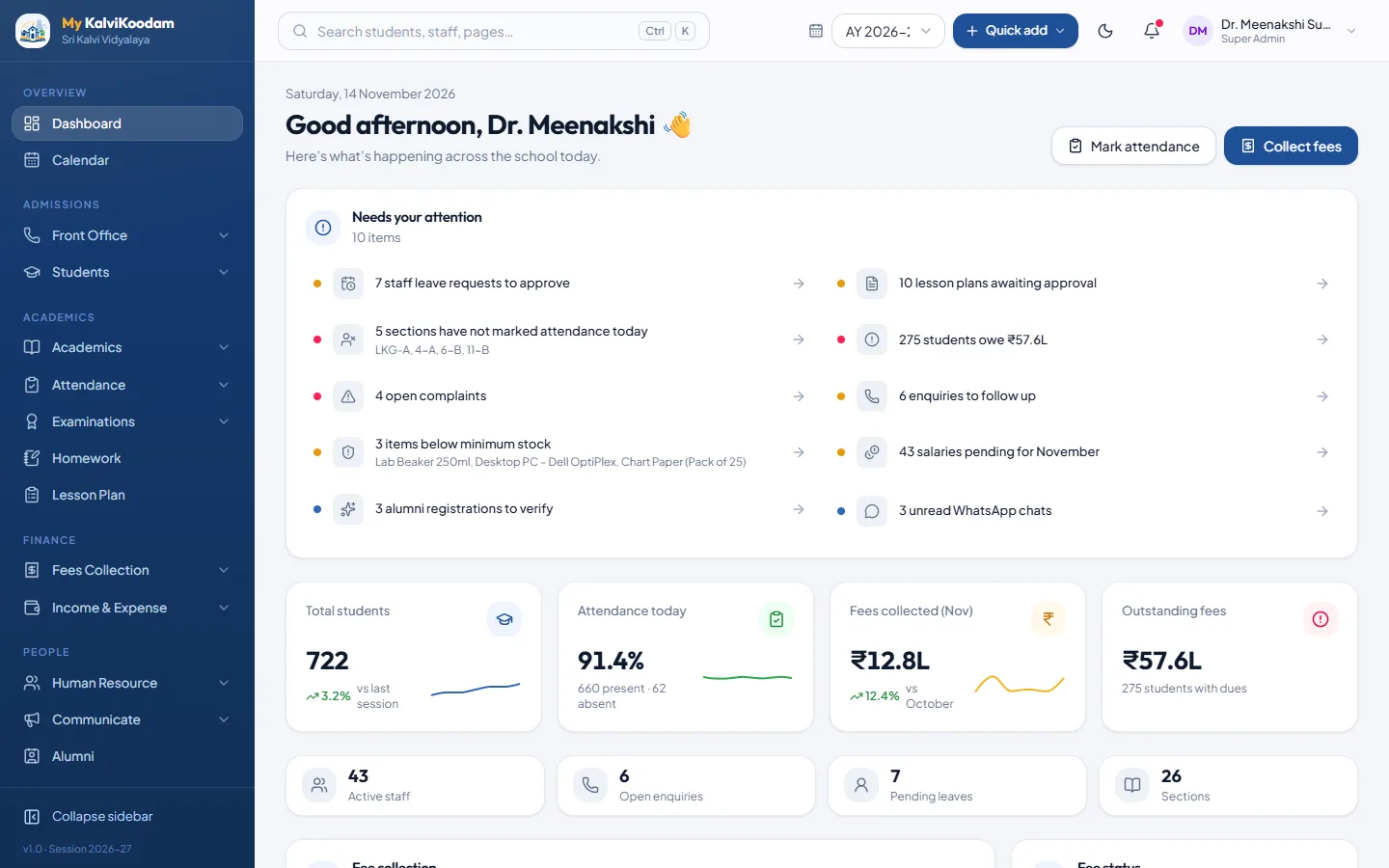
The chairperson's own dashboard

Enrolment, collection, results and alumni giving at a glance. View only.

Chairperson home
The chairperson dashboard
Their tools

What the chairperson does in My KalviKoodam

The modules this role works in, and a few of the everyday things it does there.

Income & Expense

Record school income and expenses and see the month-by-month picture.
  • Finance Overview: income, spending and net this month, with a six-month chart
  • Fees collected and salaries paid are counted in the overview automatically
  • Income entries with head, invoice number, date, amount and description
All of Income & Expense

Human Resource

Staff records, attendance, leave and monthly payroll with payslips.
  • Staff Directory with department, designation, qualification, subjects taught and photo
  • Staff documents stored on each profile
  • Departments & Designations masters
All of Human Resource

Alumni

Keep in touch with former students: directory, events, giving and mentors.
  • Alumni Directory with batch, city, industry and career filters, and CSV export
  • Public registration page where former students add themselves, verified by staff
  • Contact consent respected: details are hidden for people who did not agree
All of Alumni

Reports

16 ready-made reports across students, fees, attendance, exams and more.
  • Student information roster and Class-wise strength with boys and girls
  • Low attendance students (below 75%) and Class attendance summary
  • Fee collection, Fee due / defaulters and Collection by payment mode
All of Reports
Questions

Common questions about the chairperson view

What does the Chairperson see after signing in?
Enrolment, collection, results and alumni giving at a glance. View only.
Which modules does a Chairperson use?
Income & Expense, Human Resource, Alumni, Reports. Each user only sees the screens their role allows.
Can the Chairperson see everything in the school?
No. Roles have their own permissions, and a role only sees the modules the school has switched on. The school decides who gets which role.

Ready to see it with your own school's numbers?

Tell us about your school. We will set up a walkthrough and answer every question.