
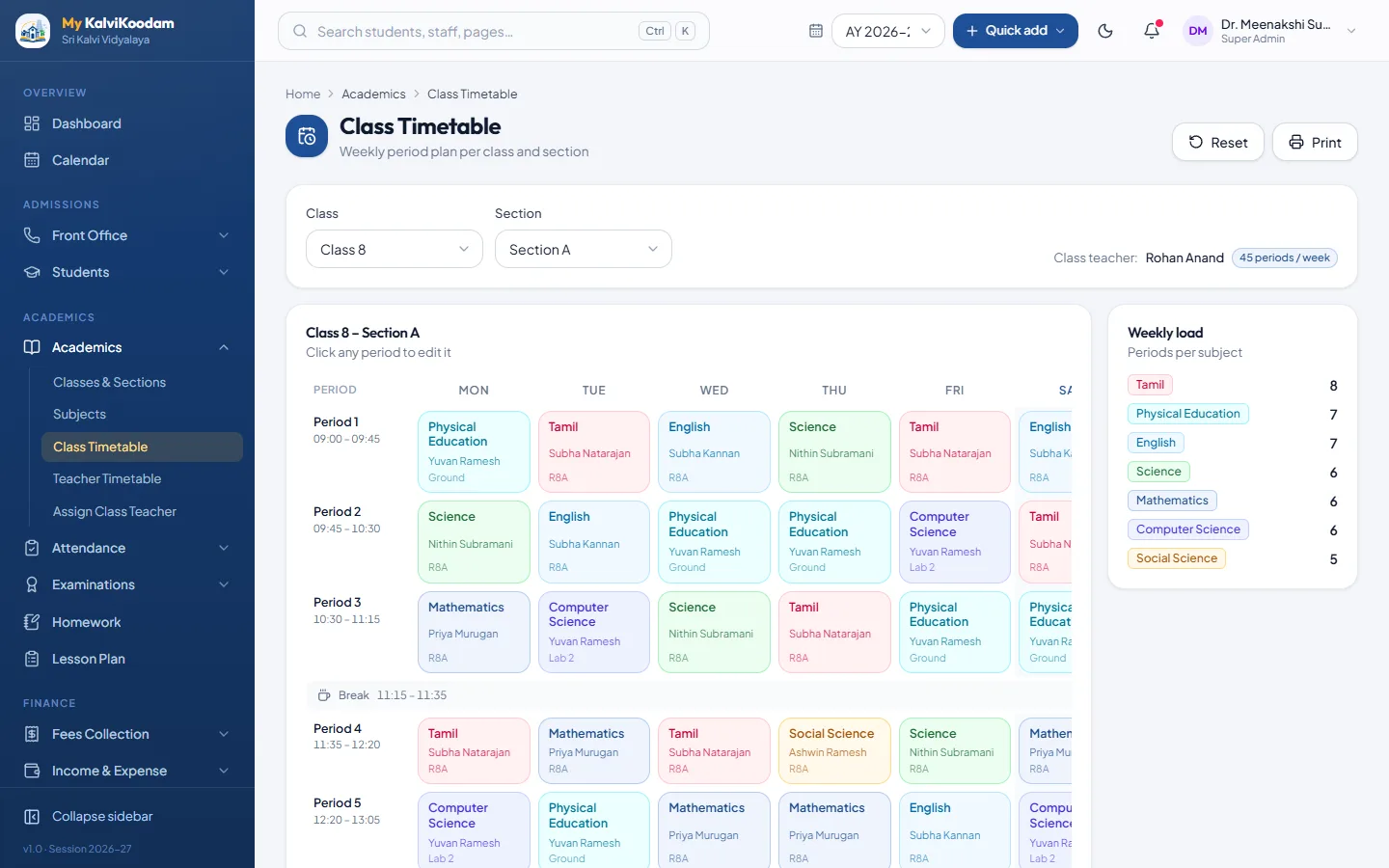
A class timetable by day and period
The timetable starts from the way the school is already set up: classes with their sections, the subjects each class studies and the class teacher. In My KalviKoodam you place each subject and teacher into a day and a period, and the grid for that class is ready to look at and print.
Each class timetable prints on A4 landscape, so it can go on the classroom wall, in the staff room and into the diary without any redrawing in Word or Excel.
Start with the structure and the timetable follows. Create the classes and sections, add the subjects with their codes and types, assign each class teacher, and only then fill the grid. Doing it in that order means the choices you pick from are already right, and a subject missing from a class is noticed before it costs a period.
A timetable is rarely right the first time. Because it is a screen and not a printed sheet, you can move a period, see the warning if it creates a clash, and print again. The wall copy and the diary copy come from the same record, so after a mid-term change everyone prints the new version and the old one is retired.
- A timetable for each class and section, laid out by day and period
- Subjects and codes kept in one subjects master
- Class teacher assigned to each section, with subject teachers following the timetable
- Print on A4 landscape
A warning before a teacher is double booked
The commonest timetable mistake is a teacher listed in two classes in the same period. The system warns you when you try to place a teacher in two classes at once, so the mistake is found while you are building the grid and not on the first Monday of term.
The warning matters most for teachers who take several classes and subjects, such as a senior science teacher who also handles mathematics in a junior class. On a paper grid it is easy to overlook that Tuesday's fourth period is already taken. The system checks each time you place someone, so the vice principal reviewing the timetable can think about the balance of subjects through the week instead of hunting for double bookings.
Every teacher has a timetable too
The teacher timetable shows one staff member's week across all the classes they take. A teacher can see their own day, and the principal or vice principal can check how loaded anyone is. Because it is drawn from the same entries as the class timetables, the two views cannot disagree.
A teacher timetable is also a fair way to talk about workload. When a teacher asks why they have so many free periods, or none, the vice principal can open the same view the teacher sees and discuss it with the figures in front of them. Teachers see their own day on their dashboard, which opens to periods, lesson plans, homework and their own class.
The substitution board: no class left uncovered
When a teacher is absent, their periods need someone in the room. The substitution board lists every period an absent teacher leaves uncovered. Staff attendance and approved leave from the staff module feed the board by themselves, so nobody has to remember to add a name.
For each uncovered period the board can suggest a free teacher, or you can assign one yourself. The suggestion looks at who is free, who teaches the subject, the class teacher and who has covered the fewest periods this month.
Picture a Wednesday morning when two teachers call in sick. Without a board, someone walks round the staff room matching free names to empty classrooms. With the board, the vice principal opens one list, sees every uncovered period for the day, accepts the suggestions and moves on. The choice keeps the load even, because the lightest month is part of the suggestion and a daily limit stops one willing teacher from covering everything.
- Auto-assign picks a free teacher by subject, class teacher and lightest month
- A daily limit per teacher keeps cover fair
- A report shows how many substitute periods each teacher has covered
When a teacher leaves the school
A teacher who has left, or is made inactive, may still hold periods and a class teacher role. Those periods stay on the substitution board until you hand them over, and the staff screen lets you pass the periods and the class teacher role to another teacher in one step. A class is not left waiting for someone to notice.
This handover matters most mid-year, when it is easy to forget that a class teacher's departure leaves attendance and parent calls without an owner. Passing the class teacher role at the same moment as the periods keeps attendance and parent contact where it should be. For the rest of the staff side, read about staff records, leave and payroll.
A short checklist helps when someone leaves: mark the person inactive, open the substitution board, hand over the periods, and confirm the class teacher role has moved. Four steps, all on screens you already use, and nothing is left to memory.
Parents and students see the changes
Parents and students see the timetable in their portal, and changes show up there as well. A parent does not need to phone the office to ask which day the games period has moved to. Students can also see homework due, which comes from the same class and subject setup. See the parent portal for what else families can see.
This also cuts calls to the office at the start of term, when the first question from many families is which periods their child has on which day. Parents see the timetable beside attendance, fees, results and notices, with one family login for all their children, so they can find it without asking anyone.
Building the first timetable: a practical order
If you are moving from a paper timetable, this order saves rework. It uses only what the system already holds, so nothing has to be invented.
- Set up classes and sections
- Add the subjects, with a code and a type for each
- Check that every teacher is in the staff directory with the subjects they teach
- Assign a class teacher to each section
- Fill the grid class by class, day by day and period by period, watching for clash warnings
- Open the teacher timetables and check nobody is overloaded
- Print the class timetables on A4 landscape for the classrooms and the staff room
The timetable feeds the rest of the system
Classes, sections and subjects defined in academics are used by attendance, exams, homework and lesson plans. A teacher sets homework only for the sections and subjects they teach, so a correct timetable keeps the rest of the school tidy. Exams have their own schedule per class, with date, time and room, printed on admit cards.
Think of academics as the skeleton of the school. Once classes, sections, subjects and class teachers are right, attendance knows which sections to expect, exams know which subjects to schedule and lesson plans know which classes a teacher plans for. A mistake here repeats everywhere, so it pays to take care over the setup.
Using it on an ordinary school morning
By morning the principal's home screen shows the unmarked attendance sections, and the vice principal's shows the day's absent teachers, visitors and complaints. The substitution board answers the first question of the day, who is covering whom, and the answer is already on the screen when the first bell rings.
A class teacher whose sections are marked and whose periods are covered has no reason to walk to the office, and the office has no reason to run to the classrooms. That is the quiet benefit of a timetable that lives in the same system as attendance and staff leave.
Who uses it
The principal and vice principal build and review timetables and handle substitutions. Teachers read their own timetable, and the receptionist can see it when parents call. To go through the screens with your own class list, book a demo.
The timetable is read by almost everyone in the school. Teachers use it to know where to be, parents to know what to pack, and students to know what comes next. Leaders use it to find free teachers and to review coverage. A single correct source for all of them is worth more than any clever feature.