
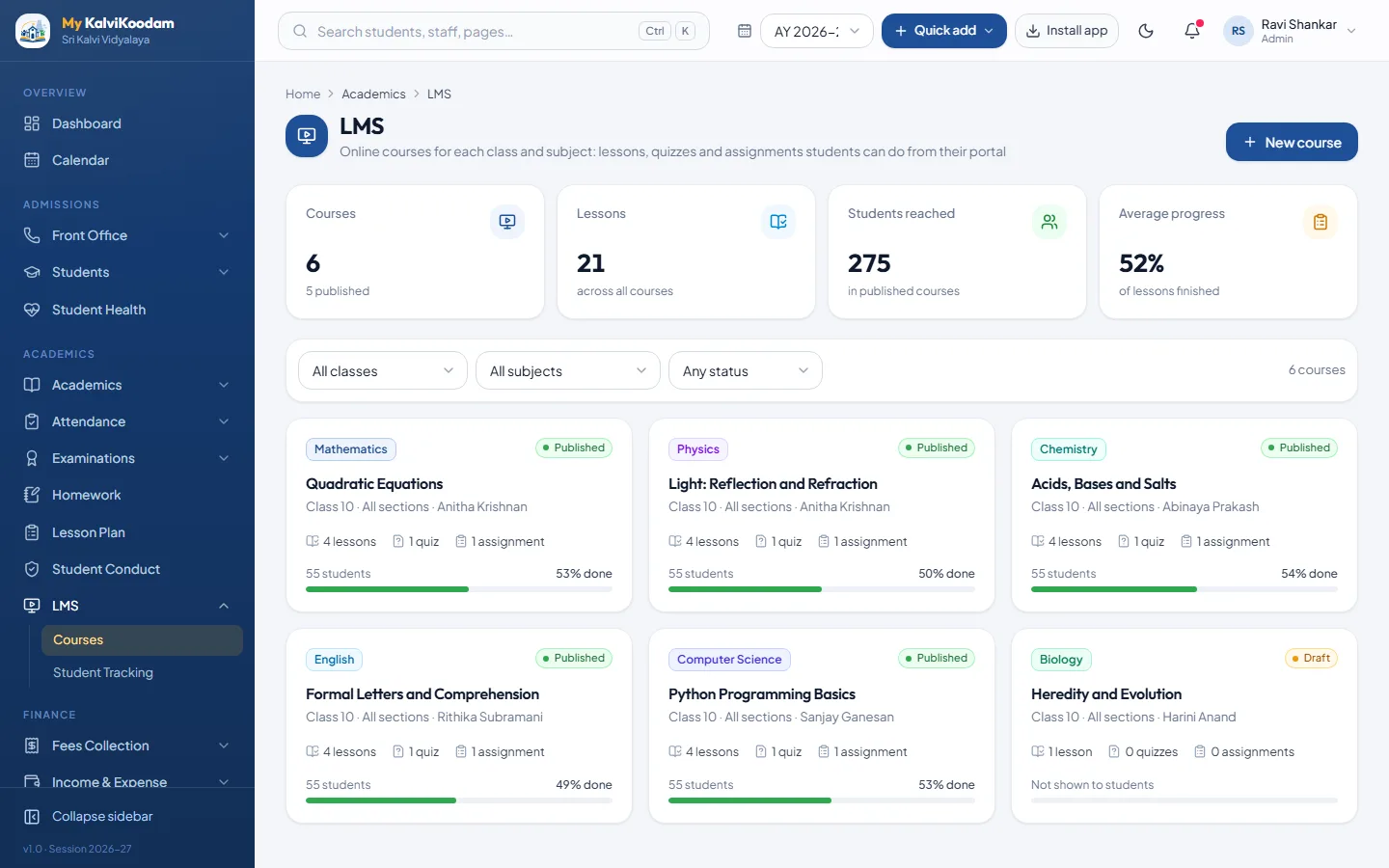
A learning module inside the school system
An LMS, or learning management system, is where lessons and practice work live online. Most schools that want one end up with a separate product, a second set of logins and a student list that has to be copied across. My KalviKoodam avoids this: the learning module uses the same classes, students and teachers as the rest of the school, so there is nothing to synchronise.
That matters more than it sounds. A separate learning platform needs its own class list, and the list goes out of date the first time a pupil joins mid-term or changes section. In the school system the student list is the school's student list, so learners are always the right pupils in the right class.
A class teacher can look at attendance and exam results and then open the course tracking in the same sitting, using one login and one set of student records.
Courses for a class and a subject
A teacher creates a course for a class and subject. It stays in Draft while the teacher builds it, and students see nothing until the teacher publishes it. A course is organised into chapters, and each chapter holds lessons, quizzes and assignments.
Draft status is the teacher's private workspace. A teacher can write a chapter in the evening, add a quiz and test it, and publish only when it reads well. Courses belong to a class and a subject, which keeps the learning module in step with the timetable and with homework.
A school can start small. One teacher, one class and one subject is enough to test the idea. If it works, other teachers copy the approach and the school builds up its courses over time without any extra tool.
Lessons as reading, video or a web link
A lesson can be a piece of reading, a video or a link to a web page. Videos from YouTube and Vimeo play inside the lesson, so students do not leave the portal and wander off. Teachers can mix formats within a chapter: a short reading, a video explanation and then a quiz.
Short, varied lessons tend to hold attention better than one long document. A chapter might begin with a page of reading, include a video, link to a practice page and end with a quiz. Students mark each lesson done, which is how the teacher later sees how far each child has got.
Lessons need not be elaborate. A teacher who already has a good video or a useful page can simply link to it, and the lesson sits in the right chapter with a clear title. A reading lesson can carry the teacher's own notes, so students have one place for everything.
Quizzes that mark themselves
Quizzes can have single-answer questions, multiple-answer questions and true or false questions. The system marks them automatically, and the student sees the right answers and the explanations afterwards. A teacher spends the time writing good questions, not ticking papers.
Because marking is automatic, a quiz is useful for daily practice as well as for tests. A student can see where they went wrong straight away, which is when it is most useful.
For a teacher, a good quiz is a one-off investment that serves every section. For a student, the explanations turn a wrong answer into a short lesson. Mixed question types let a teacher test recall with true or false questions and understanding with multiple-answer questions.
Because the system records each student's best quiz score, a teacher can tell who has understood a chapter and who needs another look before the term exam arrives.
- Single-answer, multiple-answer and true or false questions
- Automatic marking
- Right answers and explanations shown after the attempt
Assignments graded with feedback
Assignments carry instructions, a due date and maximum marks. Students hand in their work from the portal, and the teacher grades each one and writes feedback. Work that is overdue is easy to see, so the teacher knows whom to chase.
Assignments give a teacher something a quiz cannot: a student's own work, marked with comments. The teacher sets the maximum marks and the due date, and the submissions arrive in one list. The feedback stays with the assignment, so a child can read it again later.
Handing in is simple for students and tidy for teachers: there is no pile of papers to collect or carry home, and the list shows who has submitted, so chasing is targeted.
Live classes with a video room
A teacher schedules a live class for a section and subject: a title, an agenda, the date, the start time and the length, with an option to repeat weekly for up to twelve more weeks. The class runs in a built-in video room provided by Jitsi, or the teacher pastes a Google Meet, Zoom or Teams link. A school can point the built-in room at its own Jitsi server in the settings.
Students and their parents are notified in the app when a class is scheduled, rescheduled, cancelled, started, and fifteen minutes before it begins. The portal home shows a live-now banner, and the Join button opens ten minutes before the start. Joining records the student as present for that class, and a parent who opens the link for the child is recorded as well. The teacher sees who joined as it happens, then a summary with attendance and a CSV export, and Student Tracking shows live classes joined next to lessons and quizzes.
Teachers can only schedule for the sections and subjects they teach, and a clash with another class of the same teacher or the same section is refused.
- Classes are not recorded, and chat, a whiteboard and breakout rooms are not built in
- Video quality and limits are those of the provider; a public Jitsi room can be entered by anyone who has the link, so a school that needs more control should use its own server
- Joined means the room was opened from the app; it is not minute-by-minute presence
- Reminders are bell notifications, not SMS or WhatsApp messages
What students do
A student opens the portal, sees the courses for their class, marks lessons done as they go, takes quizzes and hands in assignments. They work at their own pace, which suits revision, make-up work for a child who was ill and extra practice for those who want it. They also see their own results in the student portal.
Self-paced does not mean unsupervised. Every lesson done, quiz taken and assignment handed in is recorded, so the teacher can see it. Students who finish early can move ahead, and those who are behind can catch up in the evening or at weekends.
Tracking who has learned what
For each course the Learners tab shows every student's progress, best quiz score and submissions. A separate Student Tracking view shows lessons learned, quizzes and assignments still pending, and overdue work. A class teacher can sit down with a child and a printed or on-screen list of what is outstanding, and the principal can see which classes are behind.
A practical use: before a parent-teacher meeting, the class teacher opens Student Tracking for a child and sees pending quizzes, pending assignments and overdue work. The conversation is then about specific tasks and not general worry. School leaders can use the same data to see how a course is being used.
The tracking views also help with children who were away. A pupil returning after an illness can open the course, see which lessons were taught and which quizzes are pending, and catch up with a clear list.
Parents follow along, read only
Parents can see their child's courses and pending work in the parent portal. Their view is read only, so they see progress without being able to change anything. It gives a parent a fair answer to the question of what the child has to do tonight.
Parents who want to help at home often do not know where to start. Seeing what is pending, in the same portal as attendance and fees, gives them a concrete starting point. The read-only view means a parent can follow progress without being able to change anything.
The same parent portal shows homework, timetable and notices, so the course list is one more place in a portal the family already visits.
Building a first course, step by step
The best first course is a small one: a single chapter for one class that you teach already. It lets you learn the screens without committing the school to anything.
- Create a course for a class and subject; it starts as a Draft
- Add a chapter and give it a clear title
- Add lessons: a reading, a video from YouTube or Vimeo, or a web link
- Add a quiz with single-answer, multiple-answer or true or false questions, and write the explanations
- Add an assignment with instructions, a due date and maximum marks
- Publish the course when you are happy with it
- Open the Learners tab after a week to see progress and submissions
How it differs from homework and lesson plans
Homework is a task set for a class on a day, with a due date and a tick for who handed it in. Lesson plans are the teacher's own plan for the period. The learning module is for structured, repeatable material: courses with chapters, quizzes and graded work. The module is for self-paced learning through the portal, not for live video classes. Book a demo and ask to see a course built end to end.
Many schools will use all three together: a lesson plan to prepare the period, homework to practise afterwards, and a course for a longer chapter that benefits from quizzes. They share the same classes, subjects and teachers, so there is no extra set-up beyond creating the course.
Because the learning module sits beside homework, a teacher can choose the tool that suits the task: homework for a quick exercise, and an assignment inside a course for a graded piece of work with feedback.